How to Carry out a Checklist
- From the Checklist dropdown menu, select either Off Hire Checklist or Pre Hire Checklist. This will open up the Checklist search screen.
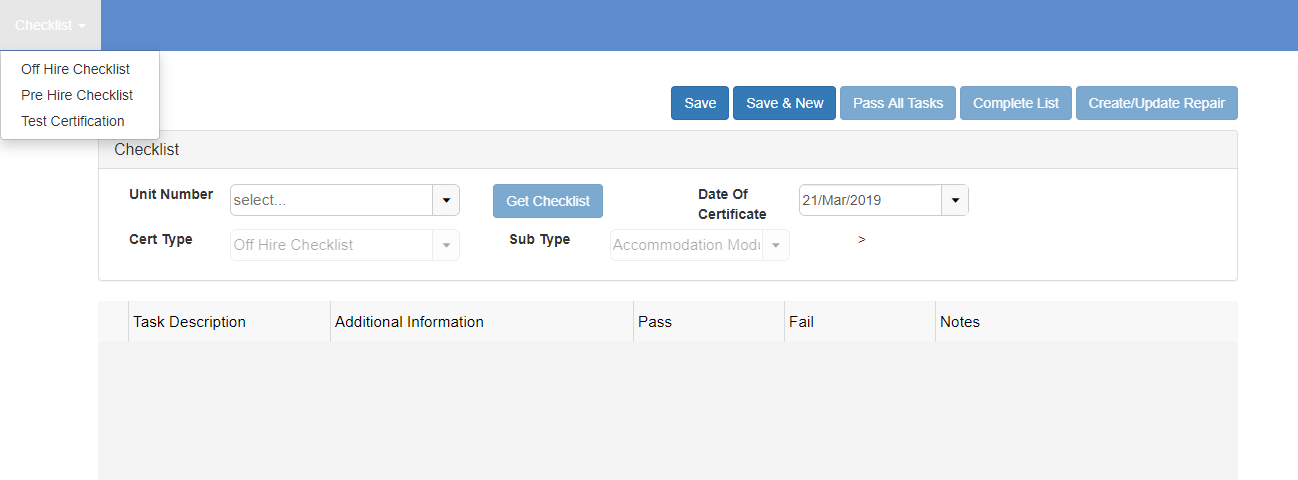
- Enter the Unit Number and select the Get Checklist button. This will create a Checklist with all the Tasks you have entered against the Task Grouping(s) that the Unit Number’s Sub Type is under.
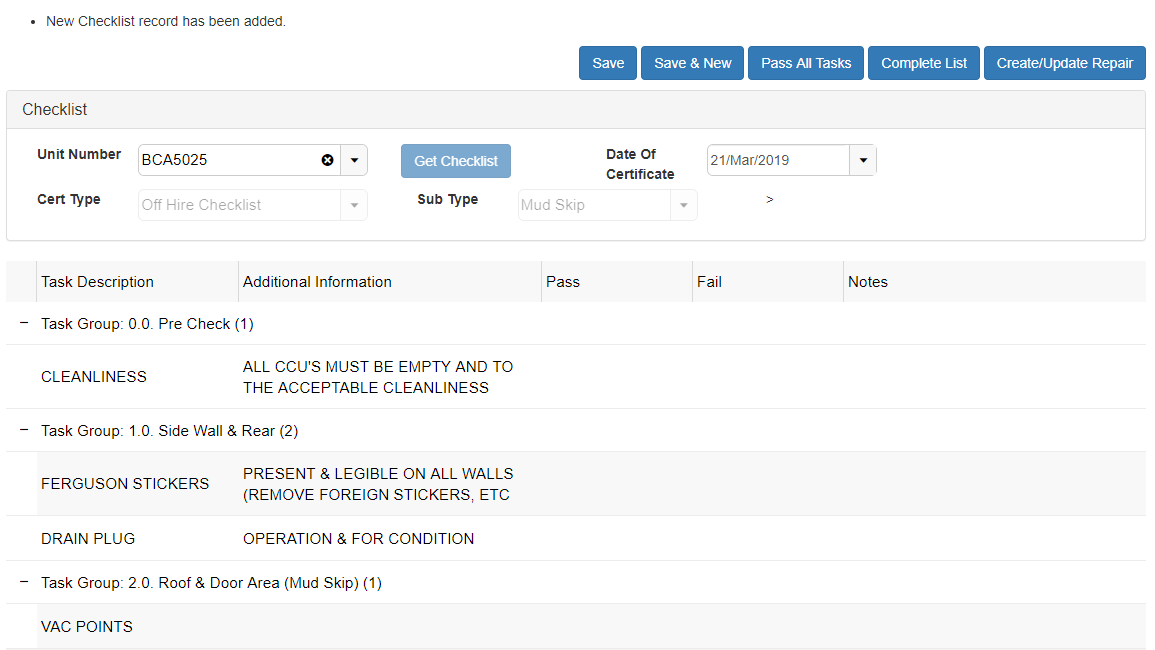
- Users should then go through each Task one by one and mark as Pass or Fail. If a Task is marked as Fail, users must enter Notes to say why it has failed.
Note: If any Tasks have failed, a Repair Details record will need to be created – please see User Guide How to Create and Complete Repair Details.
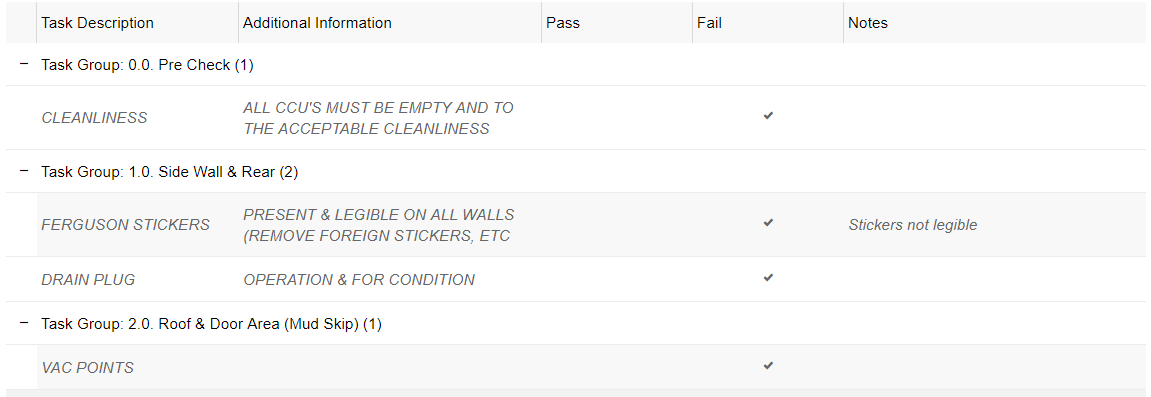
The Task Description and Notes text changes to grey and Italic when a change has been made to the line but has not yet been saved.
If each Task has passed, the Pass All Tasks button can be run instead of ticking each line manually.
- If users are unable to test each Task on the Checklist in one go, they can select the Save button at the top. Next time they search for the Unit Number and select the Get Checklist button, it will open the existing Checklist in the same state. Users can also select the Save & New button. This will save their current Checklist and take them to Checklist search screen to enter another Unit number.

- Once all Tasks have passed, users can select the Complete List button. This will complete the checklist and take the user back to the Checklist search screen.